Managing Users
From SkylineGlobe Server Manager’s Users page, you can view and manage the users allowed to administer and access resources on SkylineGlobe Server. All users are assigned user roles which define their level of access: super administrators can manage all their server’s sites, settings, users and layers, site administrators can manage all their site’s layers and users and some server settings, publishers can view and edit published layers and add layers to categories, while viewers can only view published content.
From the User’s page you can also manage your user groups. User groups enable you to easily provide view or edit access to a specific group of users (of which you are a member). A specific data source can be defined for each group to which all data from all users in the group should be uploaded and published. See "Managing User Groups" in this chapter for more information.
The following user management activities can be performed from the Users page:
§ Adding users and setting user properties
Searching for Users
To search for a user whose property information contains a specific string (e.g., User name, group, role, Active status), do the following:
1. From the SkylineGlobe Server Manager menu, select Users. The Users page is displayed.
2. In the Search field, type a search string or enter an attribute, condition, and value and click Search. The autosuggest feature will suggest relevant options as you type. Click the required option. The Users list is filtered based on your search criteria.
Adding Users and Setting User Role and Properties
To add a new user:
1. From the SkylineGlobe Server Manager menu, select Users. The Users page is displayed.
2. Click Add New User. The Add User panel is displayed.
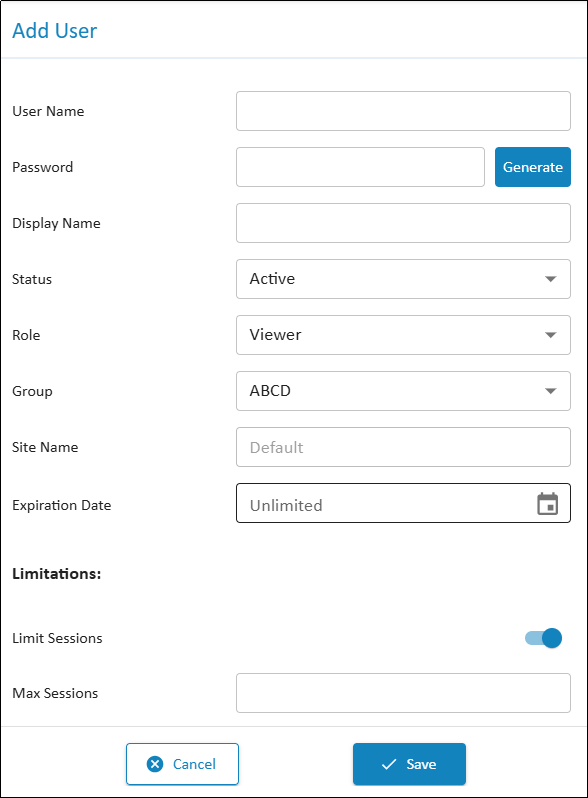
Add User Panel
3. Enter the following information:
|
Field |
Description |
|
User Name |
User name. |
|
Password |
Type the user password. Click Generate to automatically generate a password. |
|
Click Generate to automatically generate an access token. This property is only displayed if the Role was set to Viewer. Creating an access token for a user enables the user to directly access SGS layers without logging in to SGS. In TerraExplorer Fusion or Desktop, the access token parameter should be appended to the end of your server URL, e.g., https://cloud.skylineglobe.com/TEF/TE.html?project=https://cloud.skylineglobe.com/sg/demos/projects/Mexico_Beach_Emergency_Response&token=ac47c01a9b174273adfa18a0abdc308f Note: This property is only displayed for super administrators and site administrators. Note: Generating a token will invalidate any previously generated token for the same user. |
|
|
Display Name |
The name to display in the SGS and TEF user login. This is only the name displayed. To actually log in, the Username must be entered. |
|
Status |
Select if the user account should be currently active. |
|
Role |
User role: § Viewer – Can list, load and edit, from the client-side, all layers for which the user has valid view/edit access. § Publisher – In addition to all Viewer permissions, a Publisher can also publish layers to SkylineGlobe Server and manage these layers from supporting clients, e.g., TerraExplorer Pro. § Site Administrator – In addition to all Publisher permissions, a Site Administrator can also log in to SGS Manager of a specific site to perform SGS management and configuration activities. This includes management of all the site’s services, data sources, layers, groups/users and some site settings. § Super Administrator – A Super Administrator is the only user who can add, delete, and edit properties of server sites. In addition to all Site Administrator permissions, a Super Administrator can also log in to SGS Manager to any of the server’s sites to perform SGS management and configuration activities. This includes management of all the server’s data sources, layers, groups/users, and settings. |
|
Group |
User group. Users can view / edit layers published by other users in the same user group if the respective view / edit permission for the layer was set to "My Group" or "Everyone". |
|
Site Name |
Server site for this user. See "Working with Sites" in the "Configuring and Operating SkylineGlobe Server" chapter for information. |
|
Expiration Date |
Expiration date for the user account. |
|
Storage Used |
GB of storage already in use by this user. Click Refresh to refresh this information. |
|
Limitations |
|
|
Limit Sessions |
Switch this option on to set a limit on the number of concurrent clients for this user. |
|
Max Sessions |
Max sessions for this user. The number entered must be lower than the "Max Sessions" set for the user’s group (in Group Properties) and for the server (defined in each SGS license). See "Adding New User Groups" in this chapter for information. |
|
Limit Storage |
Switch this option on to set a limit on storage for this user. |
|
Max Storage |
Max storage for this user. The number entered must be lower than the "Max Storage" set for the user’s group (in Group Properties) and for the server (defined in each SGS license). See "Adding New User Groups" in this chapter for information. |
4. Click Save.
Editing User Properties
To edit user properties:
1. From the SkylineGlobe Server Manager menu, select Users. The Users page is displayed.
2. Right-click a user, and select Properties. The Update User panel is displayed.
3. Modify the properties as required. See "Adding Users and Setting User Properties" in this chapter for information.
4. Click Refresh to calculate the amount of storage on the server used by this user.
5. Click Update.
Integrating Identity Providers (IdP) in SGS
SkylineGlobe Server features integrated Single Sign-On (SSO) - OpenID user authentication, enabling users to access the server using credentials from either commercial Identity Providers (IdP) like Google Workspace and Facebook, or from enterprise identity provider servers.
Setting up these identity providers involves two main steps:
§ Configuration of the loginAuthSettings.json file to specify the IdPs SGS should recognize and interface with. Each of these properties must be accurately configured to ensure successful integration and communication between SGS and the selected IdPs.
§ Management of the lists of users authorized to access SGS. The approach to managing these lists varies between enterprise and social IdPs. For enterprise IdPs, which are typically used within organizations to manage employee identities, scripts are utilized to synchronize the user list with SGS. This process includes connecting to the enterprise IdP, retrieving user information (ensuring that the user's email address is set as their username), and using the SGS API to create or update user accounts accordingly. For social IdPs like Facebook and Google, management involves developing or implementing checker applications that act as intermediaries, handling the authentication data from the social IdPs and determining whether a user logging in already has an SGS account. Depending on the organization's policies, the checker application might automatically create a new user account in SGS, assign specific permissions, or deny access if the user does not exist.
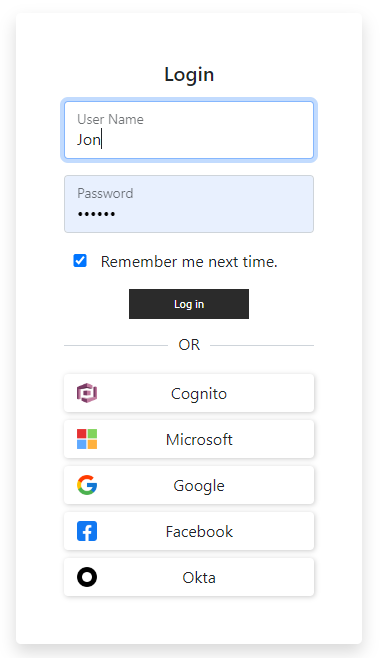
SGS Login with SSO Authentication
To configure the IdPs that SGS should recognize and interface with:
1. Locate the loginAuthSettings.json file in the SharedConfigurations subdirectory within the SharedDataPath folder defined in your deployment’s settings file:
§ Windows: appsettings.json
§ Docker: docker-compose.yaml
§ Kubernetes: deployment.yaml
See “Settings” in the “Getting Started” chapter for more information. This file includes a property named identityProviders, which is an array composed of objects. Each object represents an identity provider.
2. For each identity provider you want to add, uncomment the lines corresponding to its properties within the identityProviders comma-delimited array. The forceIdentityProvider property can be used to enforce a specific identity provider by setting its value to the name of one of the providers listed in the IdentityProviders array. Leave it as an empty string ("") if you don't want to enforce a specific provider.
{
"identityProviders": [
{}
],
"forceIdentityProvider": ""
}
Properties:
|
Name |
Description |
|
name |
Name of IdP, e.g., "Facebook". |
|
loginIcon |
Path to the icon that should be used for the IdP button in the login dialog. |
|
loginUrl |
URL of the IdP that users will be redirected to in order to log in. This information is obtained from the IdP. |
|
authTokenURL |
URL endpoint at which you will receive access tokens from the IdP to authenticate and authorize users for your server. This information is obtained from the IdP. |
|
authTokenURLRequestBody |
Request body to be sent (POST) within the "authTokenURL" request: § client_id: Public identifier for your server. § client_secret: Secret identifier for your server. These are obtained from the IdP: § grant_type: Must be set to "authorization_code". § redirect_uri: SGS URL to redirect to after getting the access token. Example: client_id=XXXXXX&client_secret=YYYYYY&grant_type=authorization_code&redirect_uri=https://cloud.skylineglobe.com/oauth/redirect |
|
getUserInfoURL |
URL for retrieving the user profile information (e.g., user name, email). This information is obtained from the IdP. Make sure that the user profile information returned by the IdP uses the user's email address as the username. This endpoint requires the People API to be enabled in the Google Cloud Console. Example: "getUserInfoURL": "https://people.googleapis.com/v1/people/me?personFields=names,emailAddresses" If the People API is not enabled, use instead: "getUserInfoURL": "https://www.googleapis.com/oauth2/v2/userinfo"
|
3. After creating/modifying the configuration file, restart SGS for updates to take effect.
Example
{
"IdentityProviders": [
{
"name": "Google",
"loginIcon": "https://skyline.com/temp/Google.png",
"loginUrl": "https://accounts.google.com/o/oauth2/v2/auth?client_id=XXXXX.apps.googleusercontent.com&redirect_uri=https://cloud.skylineglobe.com%2Fsg%2Foauth%2Fredirect&scope=openid%20email%20profile&response_type=code",
"authTokenURL": "https://oauth2.googleapis.com/token",
"authTokenURLRequestBody": "client_id=XXXXXXX.apps.googleusercontent.com&client_secret=YYYYYY&grant_type=authorization_code&redirect_uri=https://cloud.skylineglobe.com/oauth/redirect",
"getUserInfoURL": "https://people.googleapis.com/v1/people/me?personFields=names,emailAddresses"
}
],
"forceIdentityProvider": ""
}
The management of user lists within SkylineGlobe Server (SGS) for both social and enterprise Identity Providers (IdPs) involves an initial step using a checker application that interfaces between the IdP and SGS. This application handles the authentication data from the IdP and uses the SGS API to determine if a user attempting to log in via an IdP already has an SGS account. Existing users are logged in automatically, while new users trigger the application to apply the organization's policies, which may include account creation, permission assignments, or access denial.
To add user accounts in bulk to SkylineGlobe Server (SGS), organizations can use a custom script. This script retrieves a list of users, along with details such as names, email addresses, and roles. See sample script below.
For enterprise Identity Providers (IdPs), the script pulls user data directly from the IdP's system. With social IdPs, it may need to gather user data from alternate organizational records or databases maintained by the organization. After collecting the user data, the script uses the SGS API to create user accounts in SGS in bulk, setting user properties and permissions accordingly. This process should be repeated periodically to ensure the user database in SGS remains current, reflecting any organizational changes like new hires or departures.
Sample Script
<html>
<head></head>
<body onload = "init()">
<script language= "JavaScript">
var userName = "newUser";
var Password = "newPassword";
var siteName = "default";
var Role = "Publisher";
function init(){
fetch("http://127.0.0.1/" + siteName + "/ConnectSG", {
"body": "{\n \"request\": \"login\",\n \"username\": \"admin\",\n \"password\": \"password\",\n \"isPersistent\": true\n}",
"method": "POST",}).then((response) =>response.json()).then((response) =>{if(!checkUser(userName)){addUser(userName, Password, siteName)} else return;/* if the user exists, redirect to TEF\SG\TED with the known credentials*/})};
functioncheckUser(userName){
fetch("http://127.0.0.1/" + siteName + "/api/v1/user/get?userName=" + userName, {
}).then((response) =>response.json()).then((response) =>{if(response.result == "failed") return false; else return true;});
}
function addUser(userName, Password, siteName){
fetch("http://127.0.0.1/" + siteName + "/api/v1/user/create?userName=" + userName + "&permissionType=" + Role + "&txtNewPW=" + Password, {
}).then((response) =>response.json()).then((response) => {if(response.result == "success") {/* redirect to TEF\SG\TED with the new credentials*/} else {alert("could not add"); /* redirect to TEF\SG\TED login */return;}});
}
</script>
</body>
</html>
Deleting Users
To permanently delete a user:
1. From the SkylineGlobe Server Manager menu, select Users. The Users page is displayed.
2. Right-click a row with a specific user, and select Delete. The Delete User panel is displayed with a warning message that deleting the user will permanently remove all associated data and layers.
3. Click Delete if you want to delete the user.